Demo · 40 seconds, no sound
See Pinpoint in a real call
Ada and Ben review a checkout screen together. The top half is Ada’s screen, the bottom half is Ben’s. Pinpoint is a small toolbar on the call, so nothing moves. Each step is written beside the video, and in full below it.
What happens in the video
The video has no sound. This list describes every step.
- Both people open the same call. Ada clicks the Pinpoint icon. A small toolbar appears with Box already on. No forms.
- Ada drags over the cut-off Pay button on the shared screen.
- A comment box opens beside it. The first time only, she adds her name. She types and presses Enter.
- Ben is in the same call, so he is already in the same session. He sees a numbered pin and selects it.
- The thread opens under his toolbar. The picture is the whole screen, with the area outlined and the comment beside it. He replies, and the picture updates with his reply. Save image and Copy image are under it.
Short version
A 15-second square clip for posts and chats. Steps 2 to 4: mark, comment, see it.
Customise, the way you like it
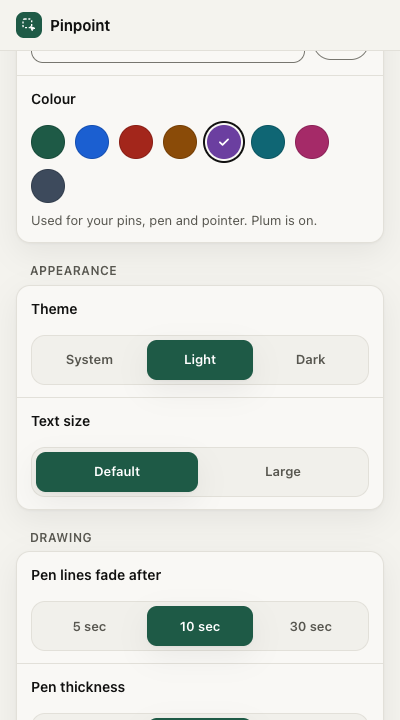
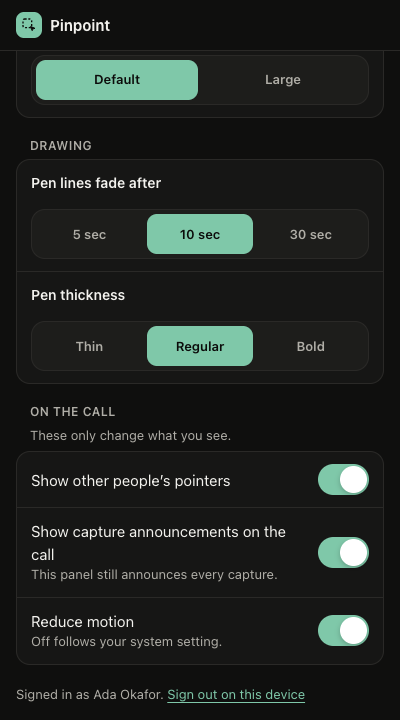
Pick your colour and name. Choose light or dark, larger text, how long pen lines stay and how thick they are. Hide other people’s pointers or the capture pop-ups on your screen, and reduce motion.
Logo and brand files





Colours: Forest #1E5A46, Paper #F4F3EE, Ink #111110, Focus #1B5FD1. Type: the system font.